
First of all, thank you so much for purchasing my Lightroom Presets.
I truly appreciate your support, and I’m excited for you to start using them in your own work.
These tools were built to help you create cleaner, stronger, more cinematic edits faster.
On this page, you’ll find everything you need to get started, including step-by-step installation guides, tutorials, and tips for getting the best results.
I’ve made the process simple, so you can spend less time figuring things out and more time creating.
Let’s get into it. 🚀
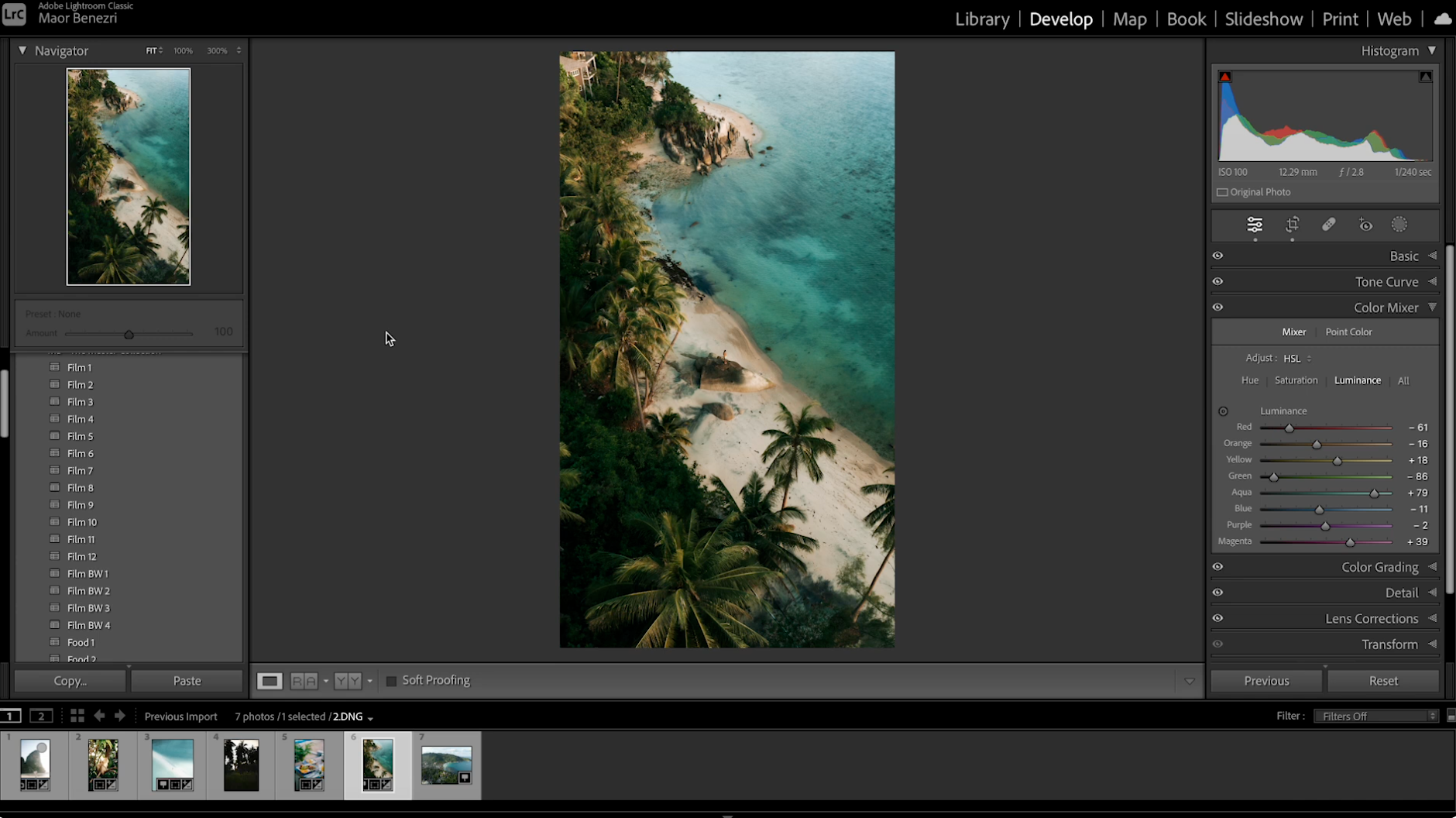
Lightroom (Desktop)
- Open Adobe Lightroom Classic or Adobe Lightroom on your computer.
- Import your photos into the app.
- Open the Presets panel in the Edit / Develop section.
- Click the + icon and choose Import Presets.
- Select the preset files from your downloaded folder.
- Your presets will now appear in the Presets panel, ready to use.
- Apply your chosen preset and fine-tune the settings to match your photo.
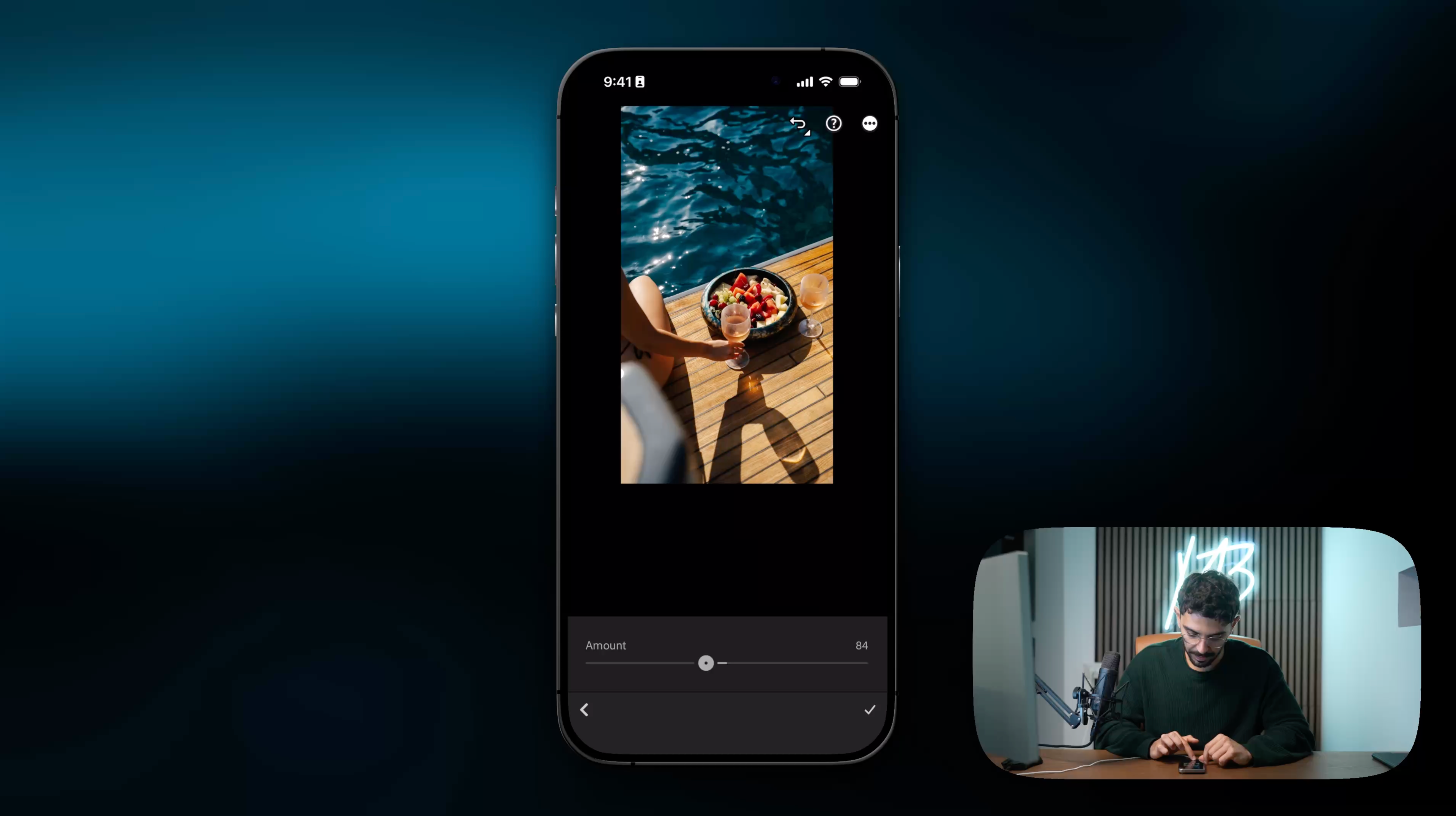
Lightroom (Mobile)
- Open Adobe Lightroom on your phone.
- Open any photo, then tap the Presets panel.
- Tap the three dots menu in the top corner.
- Select Import Presets.
- Choose the preset ZIP file from your downloaded folder.
- Your presets will appear inside the Presets panel, ready to use.
- Apply your favorite preset and fine-tune the amount to match your photo.
FAQs
Where will I receive my presets after purchase?
After completing your order, you’ll receive an instant download link by email. You can also download them directly from the checkout confirmation page.
Can I use the presets on both mobile and desktop?
Yes, you can use them on phone and computer.
Why don’t my presets look the same as your examples?
Every photo is different. Lighting, camera, colors, exposure, and white balance all affect the final result. Presets are a starting point, and minor adjustments are normal.
The ZIP file won’t open - what should I do?
After downloading from the website, first extract the main ZIP file to access the contents. Inside, you’ll find another ZIP file made specifically for Adobe Lightroom preset import. Select that inner ZIP file when using Import Presets in Lightroom. If needed, re-download the file and try again from your Files app.
I imported the presets but can’t find them.
Check inside the Presets panel under User Presets or a folder named after the pack.
Can I share the files with a friend?
No - purchases are for individual use only. Please support creators by purchasing separate licenses.