
First of all, thank you so much for purchasing my LUTs.
I truly appreciate your support, and I’m excited for you to start using them in your own work.
These tools were built to help you create cleaner, stronger, more cinematic edits faster - whether you’re editing photos or videos.
On this page, you’ll find everything you need to get started, including step-by-step installation guides, tutorials, and tips for getting the best results in different editing apps and software.
I’ve made the process simple, so you can spend less time figuring things out and more time creating.
Let’s get into it. 🚀
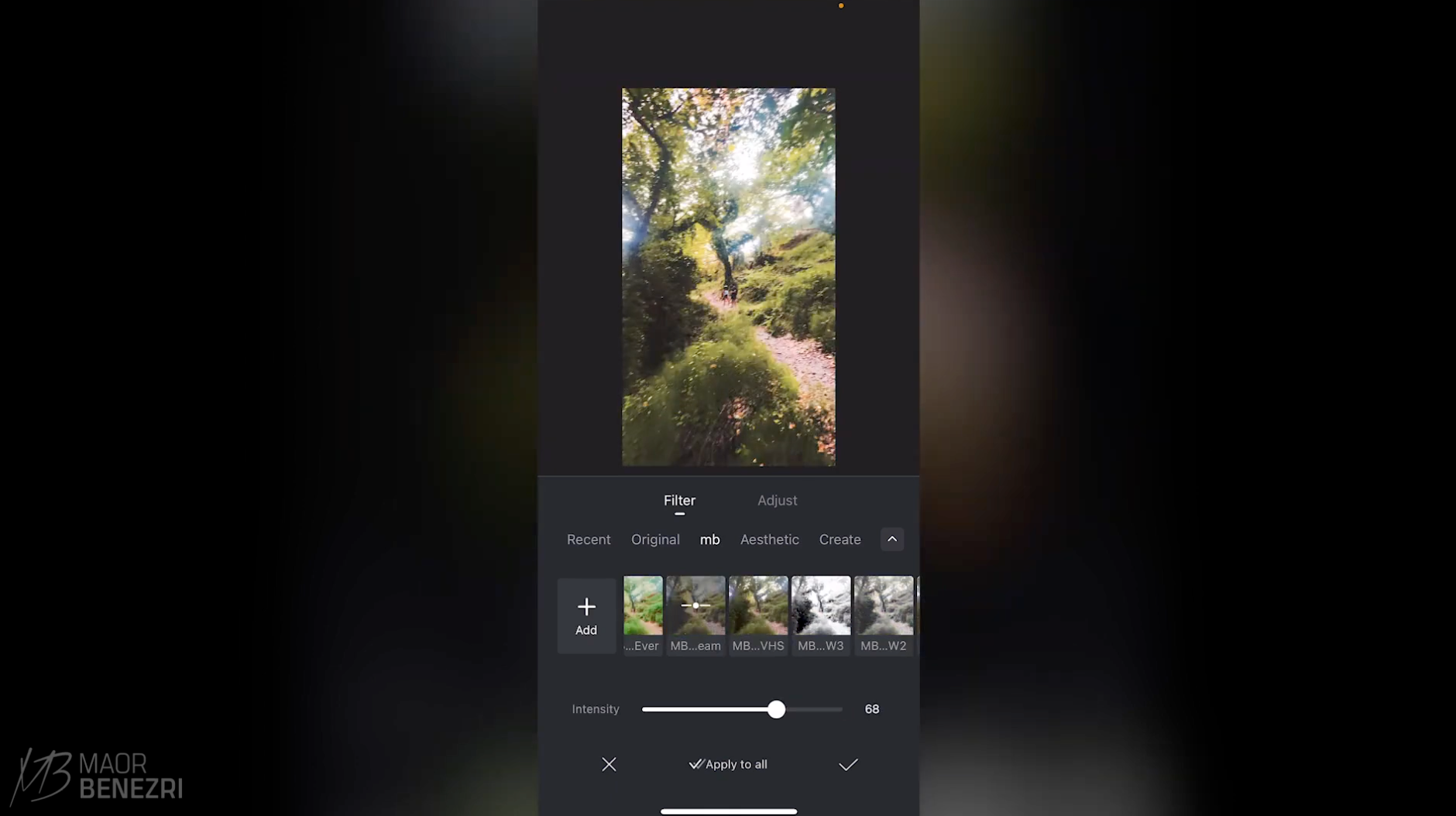

VN App (Mobile)
- Open the VN app and start a new project.
- Go to your Files app, then open Downloads > LUT Pack.
- Select the LUT files, tap Share, and choose VN.
- Create a new custom filter folder and import the LUTs into it.
- Apply your chosen LUT, then adjust the strength using the Intensity slider.
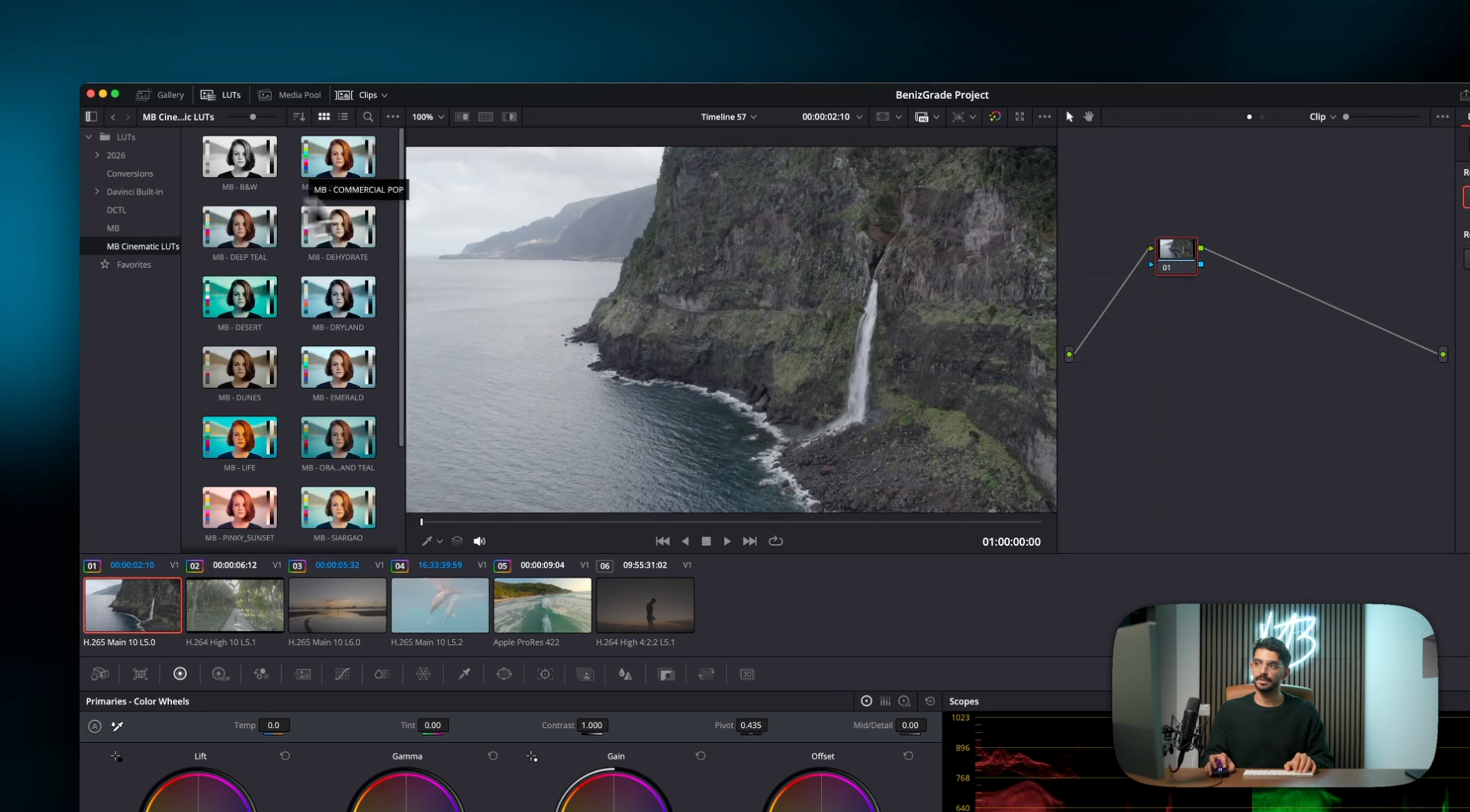
Davinci Resolve
- Open DaVinci Resolve and go to the Color tab.
- In the LUTs panel, right-click and select Reveal in Finder.
- Copy the LUT Pack from your Downloads folder into the LUTs directory.
- Refresh the LUTs folder if needed, then apply your chosen LUT.
- Fine-tune the grade and settings to match your style.
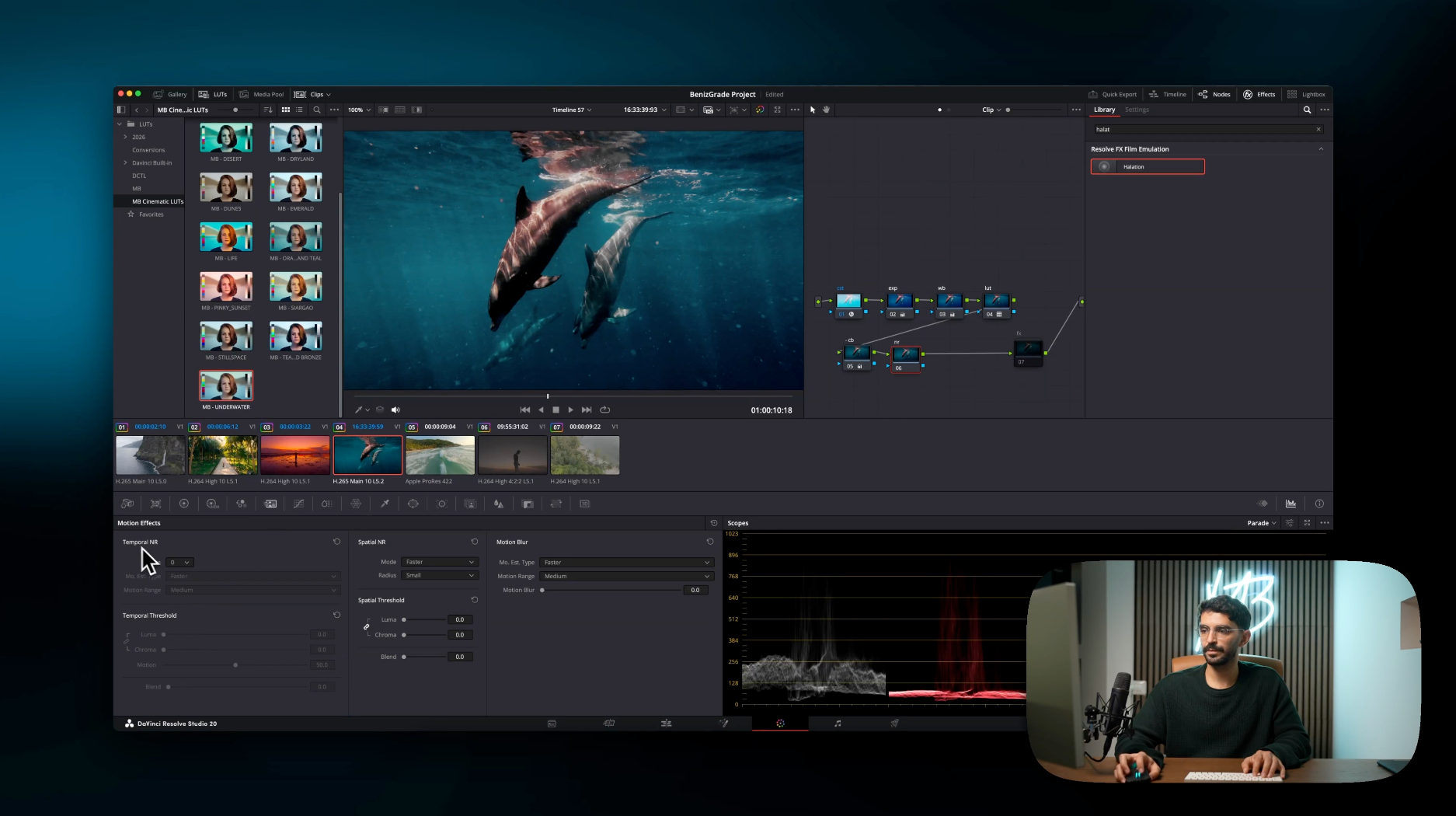
Workflow: Davinci Resolve
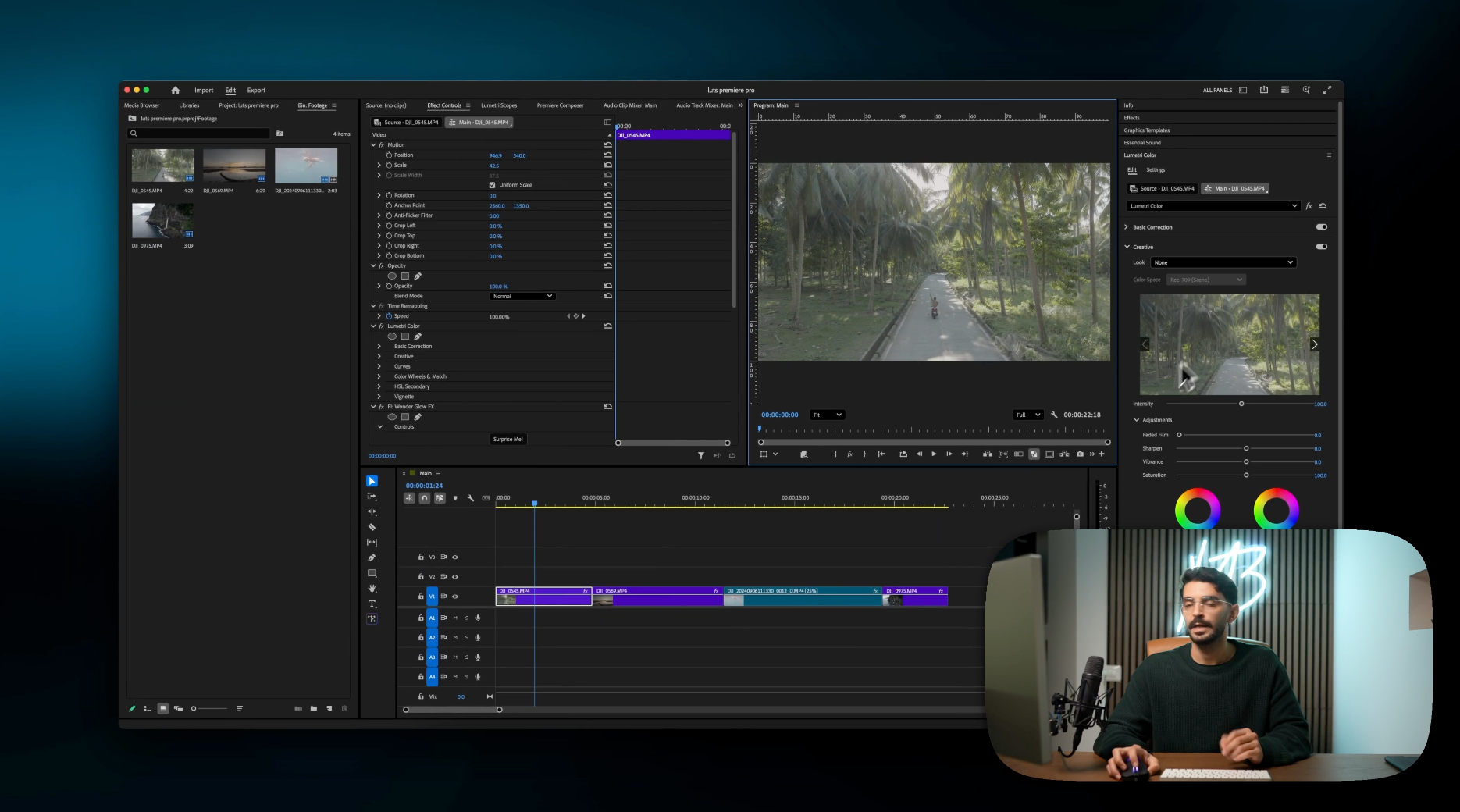
Premiere Pro
- Open Adobe Premiere Pro and switch to the Color workspace.
- Open the Lumetri Color panel.
- Under the Creative section, click Look > Browse…
- Choose the LUT file from your downloaded folder.
- Adjust the intensity to your liking and start editing.
Want your LUTs permanently available inside Premiere Pro?
Copy the LUT files into the official LUT folders below, then restart Adobe Premiere Pro:
- Mac: /Library/Application Support/Adobe/Common/LUTs/
- Windows: C:\Program Files\Adobe\Common\LUTs\
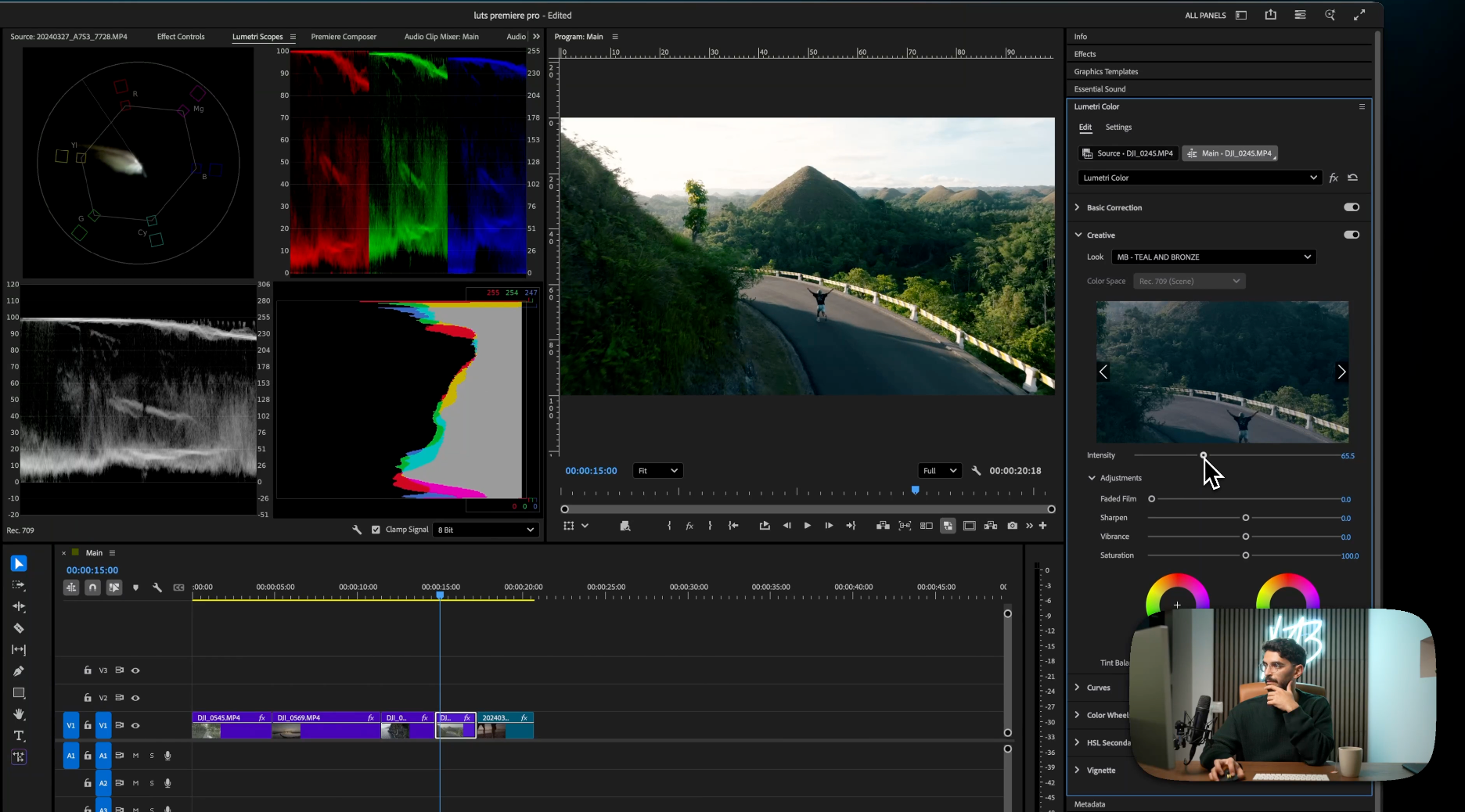
Workflow: Premiere Pro
Final Cut Pro X
- Open Final Cut Pro and import your footage.
- Go to the Effects browser.
- Search for Custom LUT and drag it onto your clip.
- In the Inspector, click to choose your LUT file.
- Adjust the Mix amount / intensity to taste.
FAQs
Can I use these LUTs on mobile?
Yes. You can apply them in the VN App, ColorLab, LumaFusion, PeekLUT, or any app that supports custom LUTs.
My LUTs are not showing up. What should I do?
- Make sure you placed the LUTs in the correct folder for your software.
- Restart your editing program after importing the LUTs.
The colors look too intense. How do I fix this?
- Try adjusting the intensity slider in your editing software.
- Make sure you’re using the Rec709 LUTs on standard footage (not LOG or RAW footage).
My footage looks different from your examples. Why?
Lighting, camera settings, and color balance affect how LUTs apply. Try fine-tuning your exposure, contrast, and white balance before applying the LUT.