
First of all, thank you so much for purchasing my Powergrade for Davinci.
I truly appreciate your support, and I’m excited for you to start use it in your own work.
The powergrade were built to help you create cleaner, stronger, more cinematic edits faster.
On this page, you’ll find everything you need to get started, including step-by-step installation guides, tutorials, and tips for getting the best results.
I’ve made the process simple, so you can spend less time figuring things out and more time creating.
Let’s get into it. 🚀
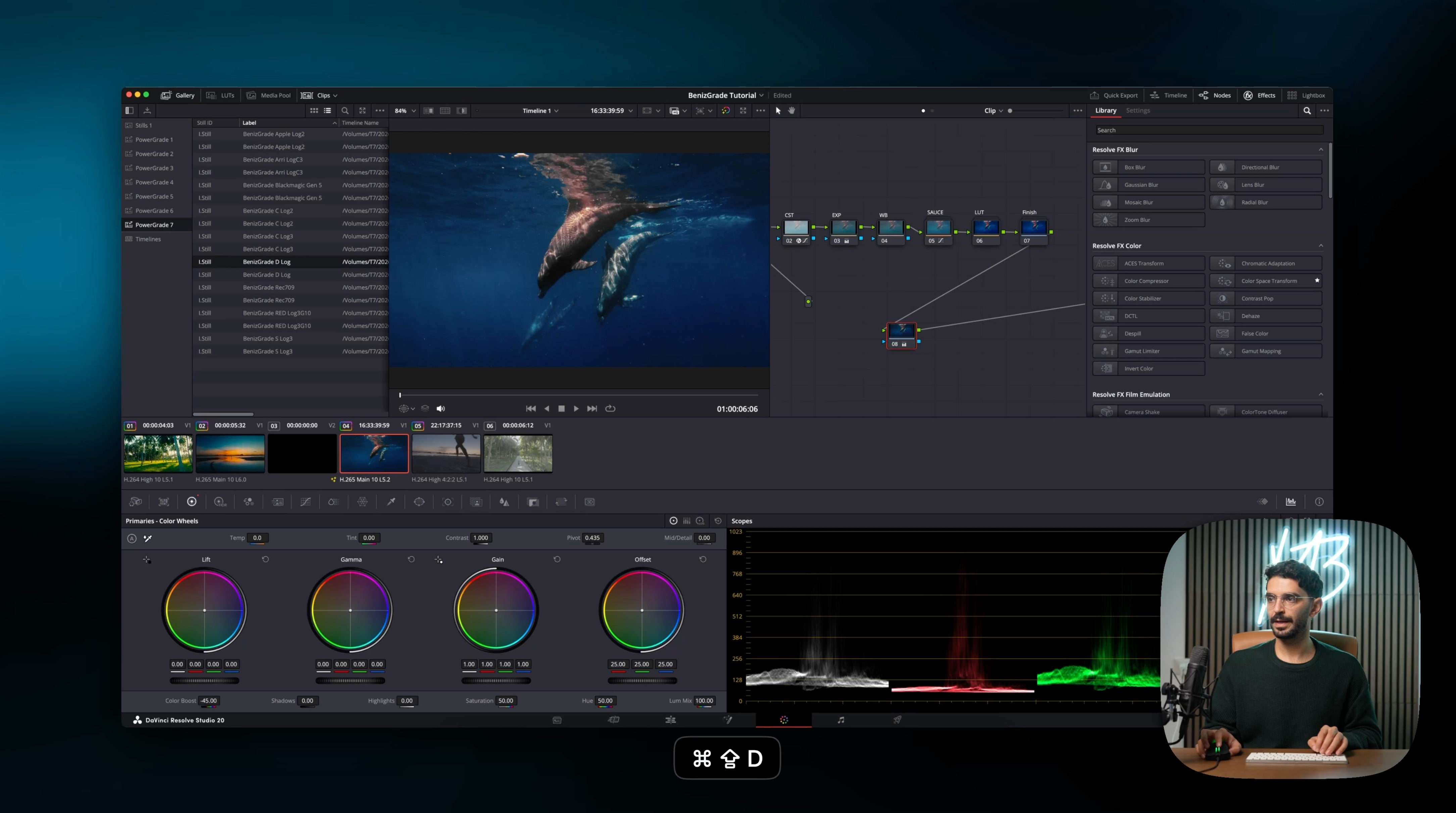

Installation + Workflow
- Open DaVinci Resolve and switch to the Color tab.
- In the LUTs panel, right-click and choose Open LUT Folder / Reveal in Finder.
- Copy the included Base LUT folder into the DaVinci LUT directory.
- Return to DaVinci Resolve, right-click inside the LUT panel, and select Refresh LUTs.
Now install the PowerGrade:
- Open the Gallery panel.
- Right-click inside the Gallery and choose Import.
- Select the downloaded PowerGrade file (.drx).
- The PowerGrade will appear in your Gallery as a still.
- Drag it onto any clip to apply the full node tree.
Recommended:
Set your project to DaVinci YRGB color management for the intended workflow, then fine-tune exposure, white balance, and creative settings to match your footage.
FAQs
What’s the difference between a LUT and a PowerGrade?
A LUT applies a fixed color transform. A PowerGrade is much more flexible - it includes editable nodes, tools, and a complete grading structure.
How do I install the PowerGrade?
Open the Color page, go to the Gallery, choose Import, then select the .drx file.
Can I edit the nodes after applying it?
Yes - every node remains fully editable, so you can customize the look to match each shot.
Why does it look wrong on my footage?
Usually this is caused by incorrect color management, wrong CST settings, overexposed footage, or using the wrong camera log profile.
Can I use it on Rec.709 footage too?
Yes, but PowerGrades are usually optimized for Log footage. Rec.709 clips may need lighter adjustments.